
How to set up New Safepay for Woocommerce
Getting Started
To get started, you can download and install the plugin. Click here to download the latest plugin and follow the instructions on the page to install the plugin. Please be sure to activate the plugin when you have installed it.
Install WooCommerce before Safepay
Please ensure you have installed the WooCommerce Plugin on your WordPress site before installing the Safepay WooCommerce plugin. The Safepay WooCommerce plugin cannot work without WooCommerce.
Important Note - You might find the Safepay plugin on the WordPress store as well but that is depreciated, it might work but it's not recommendable as it lacks support for webhooks.
First, download the plugin zip file from the Gdrive go to Plugins, and then add the new plugin by uploading:

Click on Install Now to install the plugin then Activate the plugin

After you have installed the plugin, you need to go to the WooCommerce Plugin Settings on the menu tab of your WordPress site and click the Payment tab. This will show a tab containing all the Payment options on your site. If you have installed the plugin correctly, you should see Safepay on that list. This is where you can configure the Safepay Plugin.
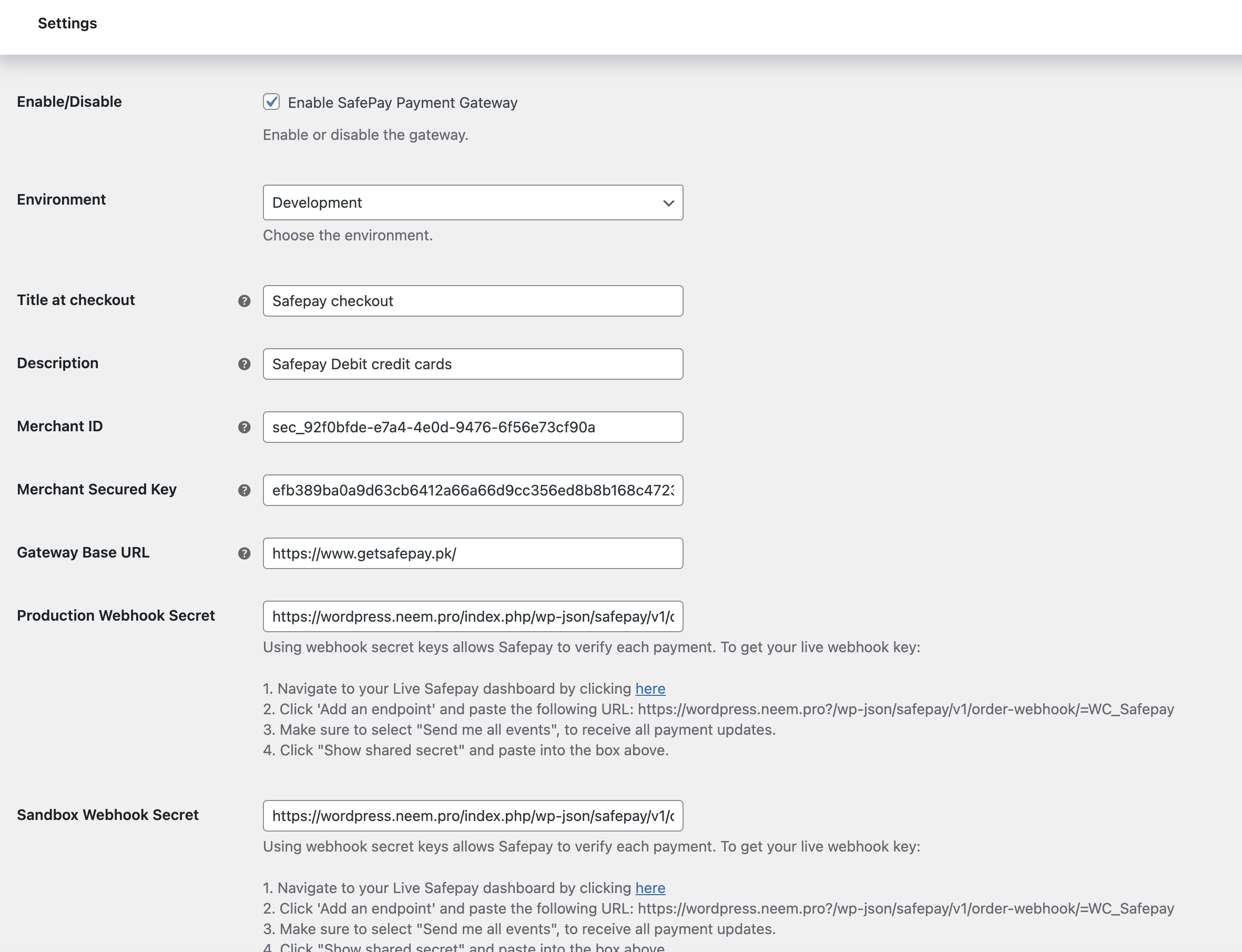
Safepay WooCommerce Plugin Settings
Here we will discuss all the settings you'll find in your Safepay WooCommerce Plugin and how they should be set in order for your plugin to function properly.
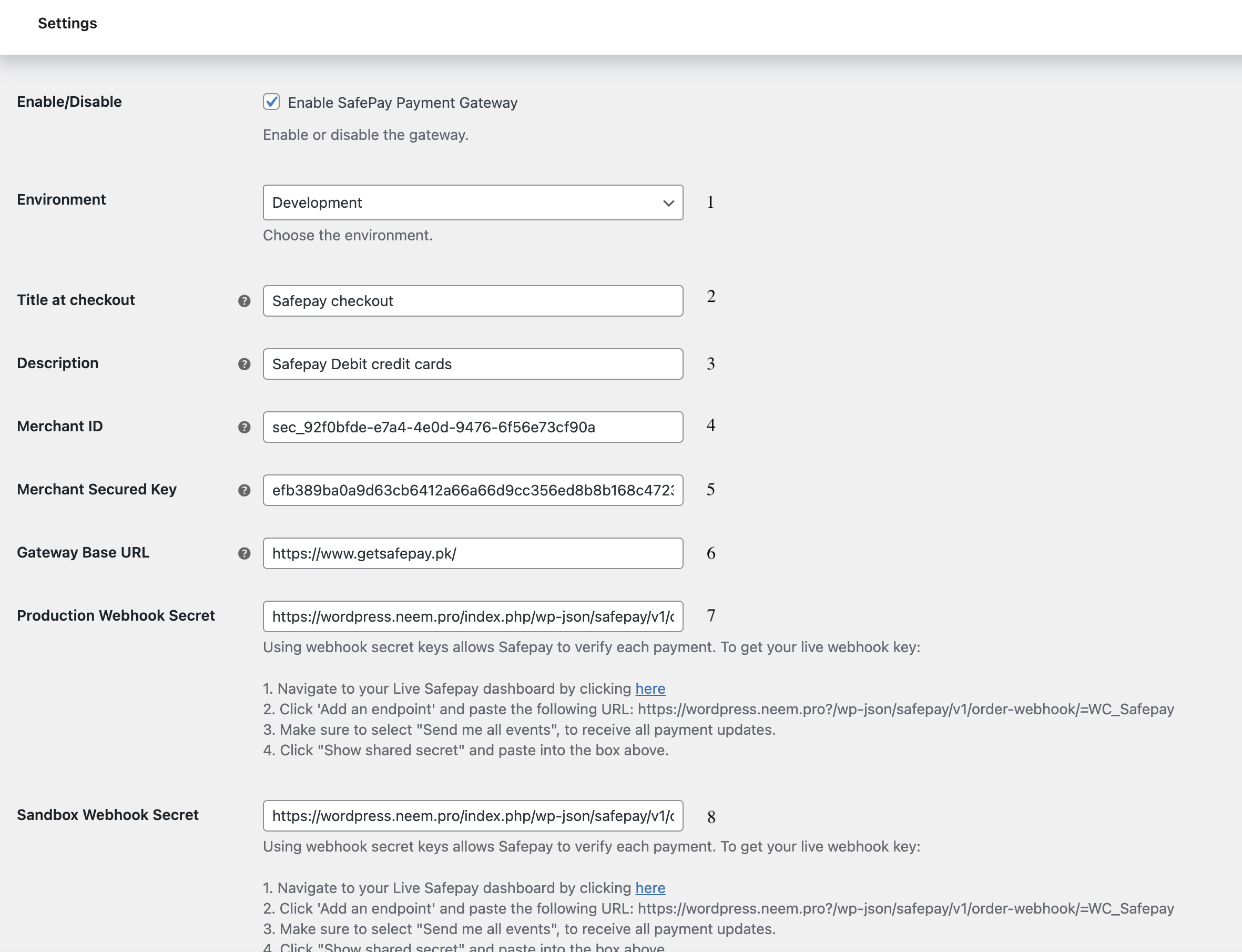
Enable Safepay: Ensure that the Enable Safepay checkbox is checked so that Safepay can show up on the list of Payment options during checkout
-
Environment: Safepay provides multiple environment options to test parameters that allow you to simulate a transaction without using real money. Development is used by people having development access to Safepay usually merchants use a sandbox environment to check the complete flow. Safepay will be using your sandbox API keys to parse the payments, meaning that the orders processed then will be done with test cards, no real money is exchanged therefore no real value should be delivered. When you're ready you can keep the environment as production to go live.
In your environment, please make sure that you have updated your API keys, if not, make sure the correct API keys are properly entered. If you don't do these, Safepay will not show on your list of plugins at checkout.
- Title at checkout: Name of payment option on Checkout Screen
- Description: What description should be reflected under the title on checkout to users
- Merchant API key: Kindly follow this link to your Safepay Dashboard Settings to find your API key. Copy the keys and enter them in the right fields in the plugin settings.
- Merchant Secure key: Kindly follow this link to your Safepay Dashboard Settings to find your API key. Copy the keys and enter them in the right fields in the plugin settings.
- Gateway URL: This will remain the default one
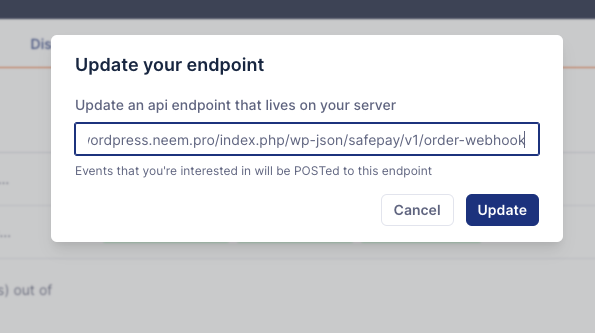
- Production Webhook Secret: This is the secret webhook URL of the WordPress store that you must add to the production Safepay merchant dashboard, this will enable the WordPress store to receive tracker and updates from our end.
- Sandbox Webhook Secret: This is the secret webhook URL of your WordPress store that you must add to the sandbox Safepay merchant dashboard, this will enable the WordPress store to receive tracker and updates from our end.
On your Safepay merchant dashboard for point 7 & 8 Navigate to the Developers section
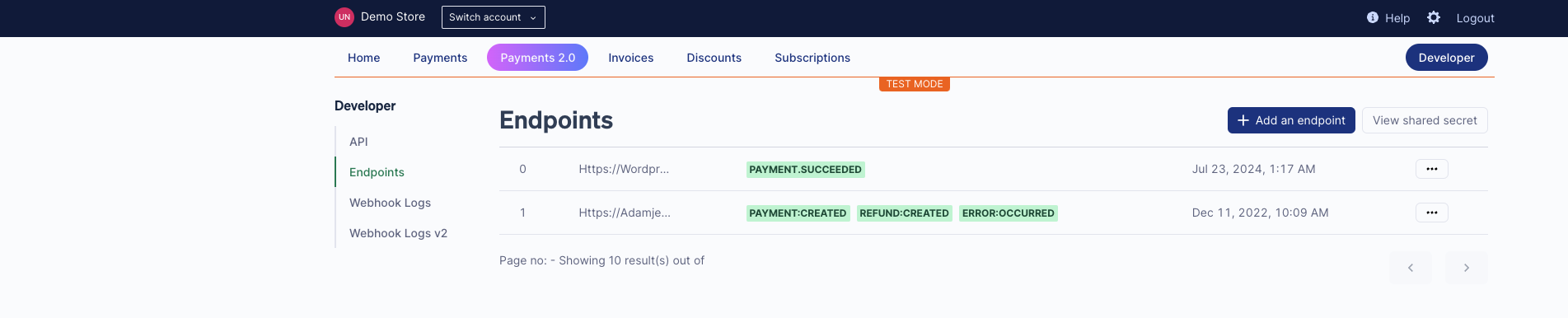
then now add a new entry to register webhook links to receive updates from Safepay to your wordpress site
Additional Fields:
Title: This is the method name that will show on orders so that you can easily distinguish Safepay transactions on the order level like below:

Description: This field is the label that will appear on the Safepay Checkout method on the woo-commerce order checkout screen, its recommended to keep Pay securely via credit or debit cards

How to get your Test and Live API keys
There are 2 dashboards: Production and Sandbox.
The sandbox dashboard can be accessed from here:
The production dashboard can be accessed from here:
You'll see a light blue bar at the top of your dashboard signifying if you are in a sandbox environment.
Please note which keys you copy into your WooCommerce payments settings.
Safepay on Checkout
If all the settings above are done correctly, you should find Safepay on your checkout page's listed under enabled payment options.
If you do not find Safepay on the Payment method options, please go through the settings again and make sure that:
- You have enabled Safepay
- The entered API Keys are correct
woocommerce orders paid with Safepay
Orders created in your woocommerce admin that are paid for through Safepay will be created with the Safepay transaction reference code. Additionally, the tracker for each transaction will be saved as metadata on the order. When you click into an order, you will see details as follows:
The red underline shows the Safepay reference code for each transaction that can be found in your dashboard. Note that if the transaction was conducted with your sandbox API key, then the appropriate transaction will be found in your sandbox dashboard, whereas if the transaction was conducted with your production API key, the transaction will be found on your production dashboard.
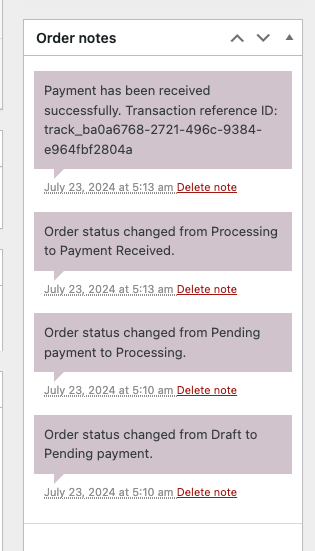
Similarly, order notes will now be marked as "payment successful" with the Safepay transaction reference code attached as well
If there is any confusion please follow the detailed video tutorial below: